Originally posted on March 2, 2010 @ 7:39 am
I have to admit, I like playing around with my computer’s settings whenever I get myself a fresh install of Windows. Since Windows XP’s default blue Luna theme isn’t really much to look at, I usually install the Zune theme first before anything else. However, Windows 7 was so amazing that I actually decided to keep it vanilla for the longest time.
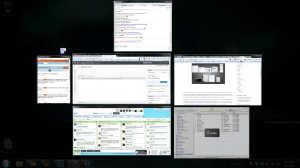
Until now I haven’t tweaked Windows because I actually love how the Superbar and all the other changes work. I can say that this is the first version of Windows I was practically very satisfied with. However, earlier today I was rushing a really important project and that required me to open and maintain around 15 windows between various programs, and even the Superbar wasn’t able to actually help me out here. I remember sighing in frustration because switching windows somehow took too many clicks.
Taking a breather from my deadline-intensive task, I did a little googling and found Switcher, a nifty little app that emulates the actions of Mac OS X’s fabled Exposé. Okay, yeah I know this is one of those little apps that try to make Windows look and act like Mac OS X, and I’m usually against that kind of thing. I mean, if you’re going to make your PC look like Mac OS X, just get a freaking Mac, right? Or if you’re willing to go down the illegal route, just Hackintosh your beloved computer. But I digress.
The thing is, Switcher isn’t just one of those “me too” programs you install. It’s actually fast enough, and kinda light on system resources. I say “kinda” because it’s not exactly lightweight, but it’s good enough to be functional when I have around 20 windows open. I didn’t even have to install it. There’s a stand-alone version that runs pretty well. I don’t see myself using it all of the time, but when I’m overwhelmed by too many windows and clicks and alt-tab just isn’t cutting it, Switcher works pretty well.